METHOD, EXAMPLES & LIMITS
Choose the tradeoff.
Check the result.
Image Studio creates new listing images from files you select. It uses browser Canvas, processes one image at a time and never changes your original files.
Cover: exact dimensions, cropped edges
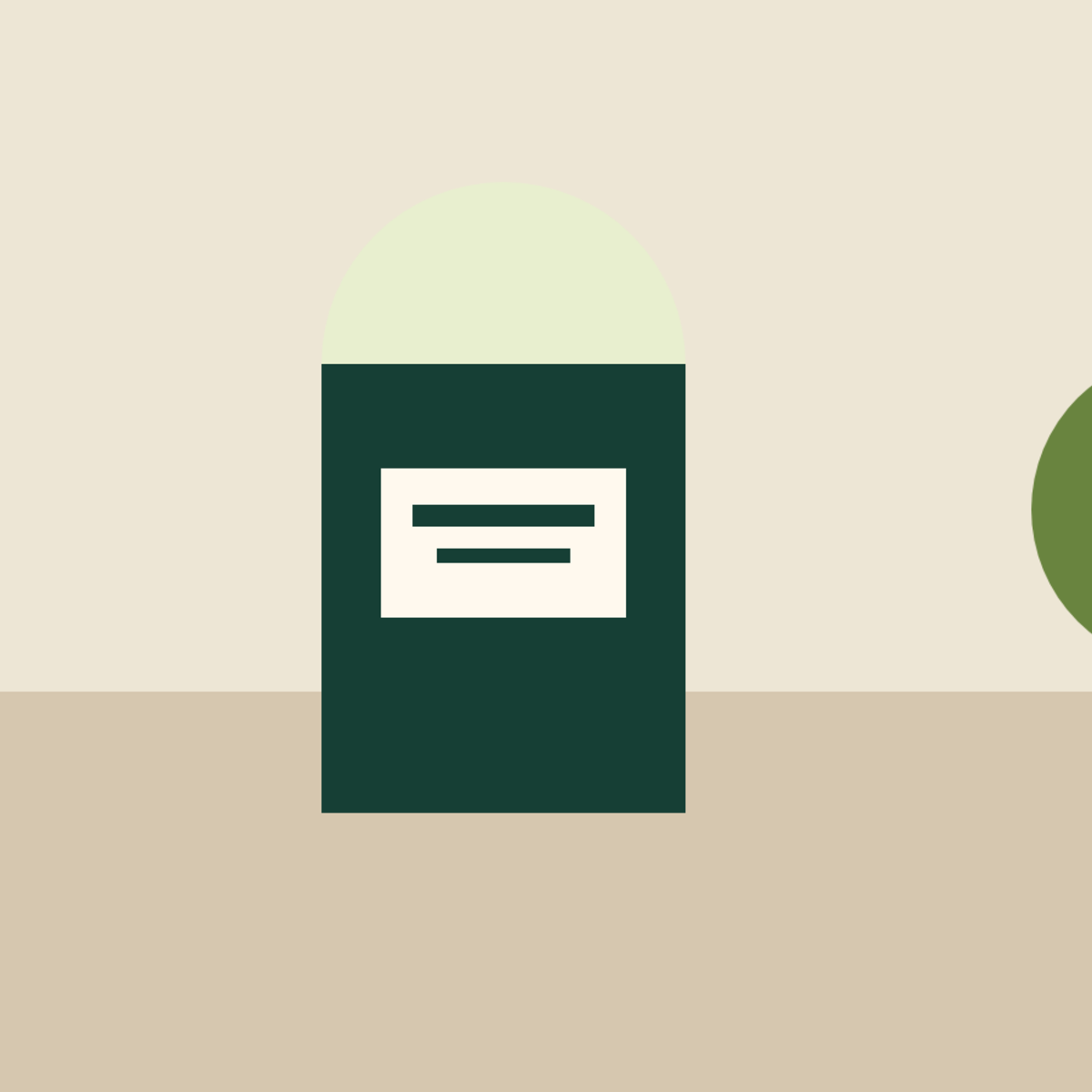
Cover scales an image until the requested canvas is filled. Any excess is cropped. A 1600 × 900 image on a 1200 × 1200 canvas uses a square 900 × 900 region of the original. At the center focal position, 350 pixels are cropped from each horizontal edge before scaling.
Move the horizontal focal position toward 0% to keep the left edge, or toward 100% to keep the right. The same rule applies vertically. This is a shared batch position, not automatic subject detection. Inspect each result because compositions differ.
Contain: keep the image, add padding
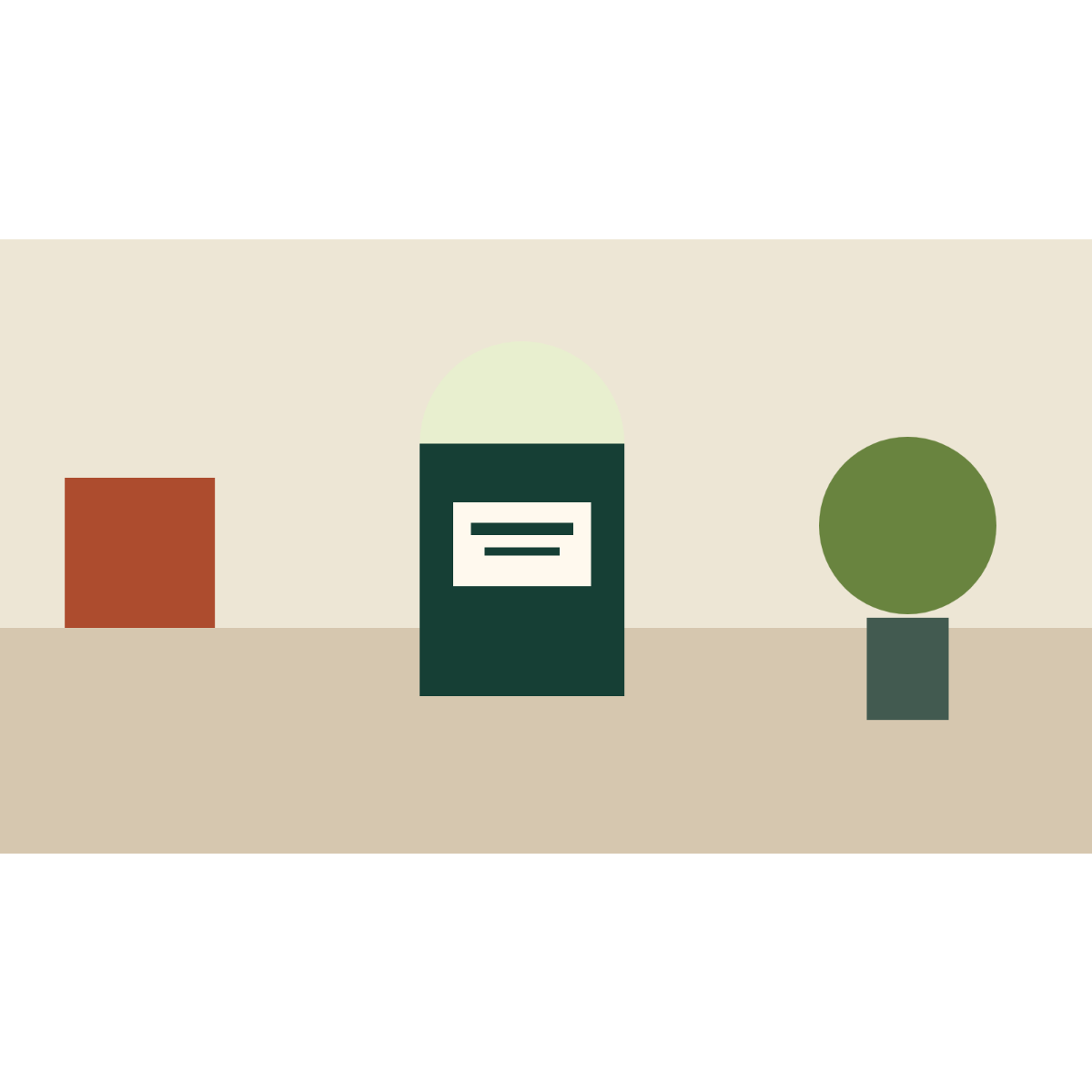
Contain scales the complete image into the requested canvas. The same 1600 × 900 input on a 1200 × 1200 canvas becomes a 1200 × 675 image with the remaining vertical space filled by padding. Centering leaves 262.5 pixels above and below; Canvas handles fractional placement.
Your background color fills padding unless transparency is preserved in PNG or WebP. JPEG always uses an opaque background.
Resize: preserve the aspect ratio
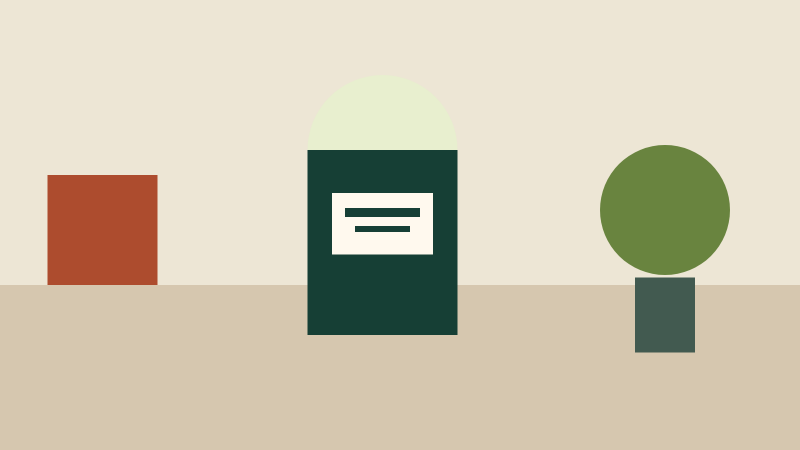
Proportional resize treats the requested dimensions as maximum bounds. A 1600 × 900 image inside 800 × 800 bounds becomes 800 × 450. Smaller images keep their original size unless you enable upscaling. Cover and contain use exact canvas dimensions and can upscale; upscaling cannot restore detail.
Compress images
Compression mode keeps each source image's dimensions and uses the same format and quality controls. Images above the output safety limits are rejected rather than silently resized. Use the listing studio's proportional resize mode to reduce their dimensions first.
Ratio preview
Ratio preview uses the same cover or contain engine to create an inspectable output in your chosen shape. The preview is an actual processed image; you can download it. Ratios and presets are generic examples. Check the destination platform's latest requirements independently.
File-size targets are best effort
JPEG and WebP start at your selected quality. If a file exceeds the target, a bounded quality search tries lower settings down to 10% and chooses a tested result that meets the target when possible. We report the actual bytes and applied quality. Compression depends on image detail and the browser's encoder; a target is not guaranteed.
PNG ignores lossy quality settings. If PNG output exceeds the target, the result says so. Reduce dimensions or choose JPEG or WebP if their tradeoffs are acceptable. A file that fails the target can still be downloaded; it is never labeled as having met it.
Transparency, format and color
JPEG has no transparency. Transparent input is flattened onto the selected background before encoding. PNG and WebP can keep transparent regions when “Preserve transparency” is selected. Browser output format support is checked; an encoder fallback to a different MIME type is rejected rather than saved with the wrong extension.
Input formats are still PNG, JPEG and WebP. Animated images, SVG, GIF, HEIC, AVIF and unusual or damaged image headers are not supported. PNG inspection rejects files whose metadata header does not reach image data within the first 256 KB; detectable APNG and animated WebP headers are rejected. Browsers handle orientation and color conversion; exports are intended for ordinary web use, not print color proofing, RAW development or archival fidelity.
Safety and memory limits
- Up to 20 images, 20 MB per input and 80 MB selected total.
- Input: at most 12,000 pixels per side and 24 megapixels per image; dimensions are checked before decoding and again after decoding.
- Output: whole-number dimensions up to 6,000 per side, 16 megapixels per image and 64 megapixels across the batch.
- Target size: blank or 1 KB–20 MB. A KB here is 1,024 bytes.
- Retained encoded outputs: at most 32 MB per image and 48 MB total. ZIP: at most 64 MB of package data. ZIP stores the already encoded images without trying to compress them again.
These are file and pixel limits, not a guarantee about browser RAM. Decoding, Canvas, encoding and ZIP packaging can use several copies of image data. Large images can still be slow or exceed available memory on mobile devices. Images are decoded and processed sequentially. Cancellation stops before the next image; the current browser encoding operation must finish. You can download successful outputs even if another file fails.
Three practical workflows
A seller with portrait and landscape product photos
Choose a square canvas and Contain to keep the complete product visible in both orientations. Choose a white or brand background and turn off transparency preservation if you want an opaque, consistent border. Process the batch, inspect every image for unexpected margins, then download the ZIP. Use Cover only when cropping the product is acceptable.
A creator adapting a landscape graphic to a vertical shape
Use Ratio Preview with the vertical preset and Cover. Move the focal position toward the subject. Check whether text, faces and important edges survive the crop. If essential details disappear, choose Contain or prepare a new composition instead of relying on a tighter crop.
A creator reducing a photo's file size
Use Compress Images to keep its dimensions and try JPEG or WebP with a realistic target. Check the actual byte count and inspect the downloaded image for artifacts. For a graphic with transparency or fine text, compare PNG too; a smaller JPEG file may lose useful detail or flatten transparency. If the target remains unmet, switch to proportional resize in Listing Studio and reduce dimensions.
Original worked image examples
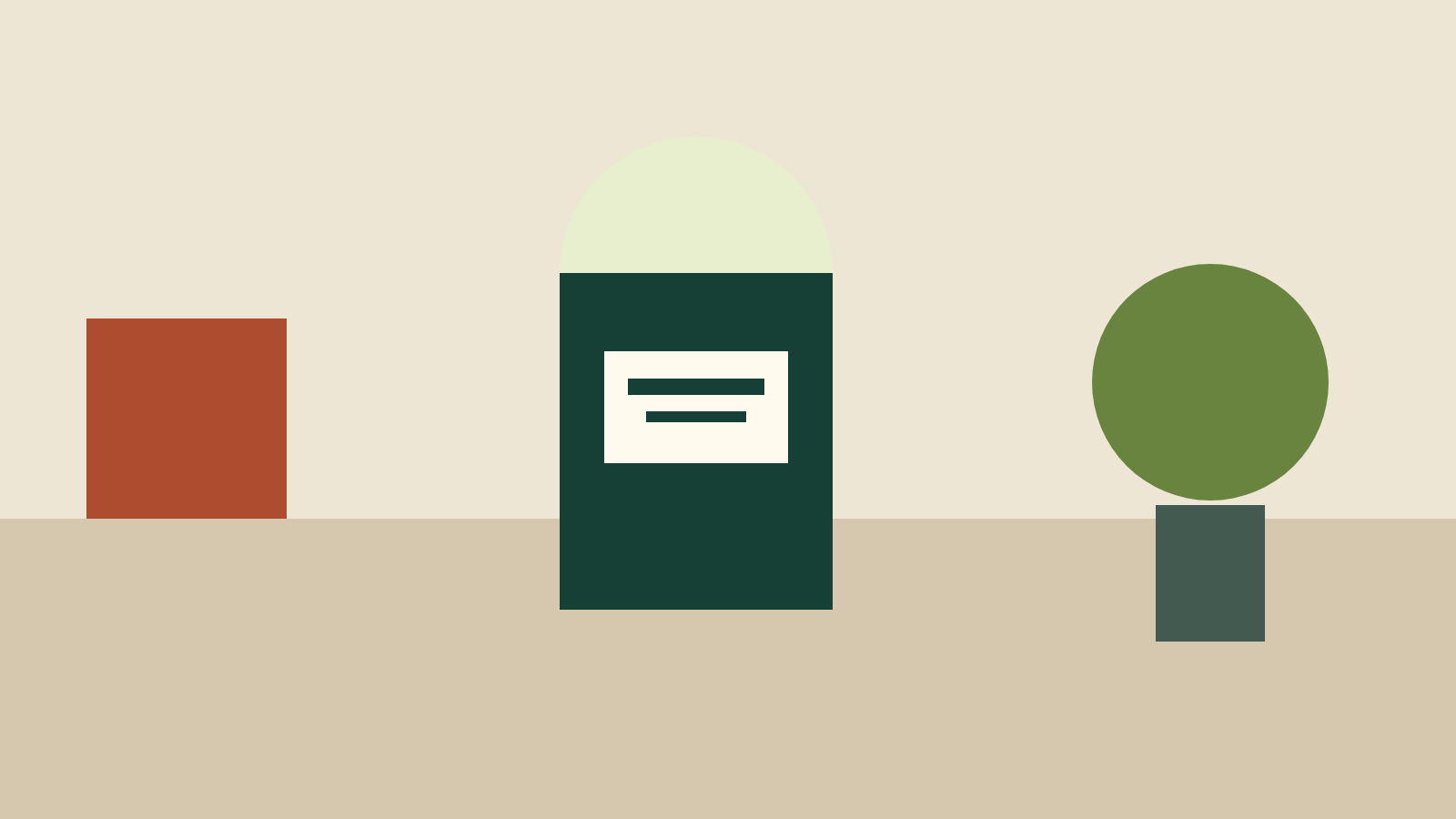
This project-created geometric illustration makes the crop visible: the square near the left edge disappears in a centered Cover crop, while Contain preserves all three objects. These are actual image files produced by the same engine as the tool.
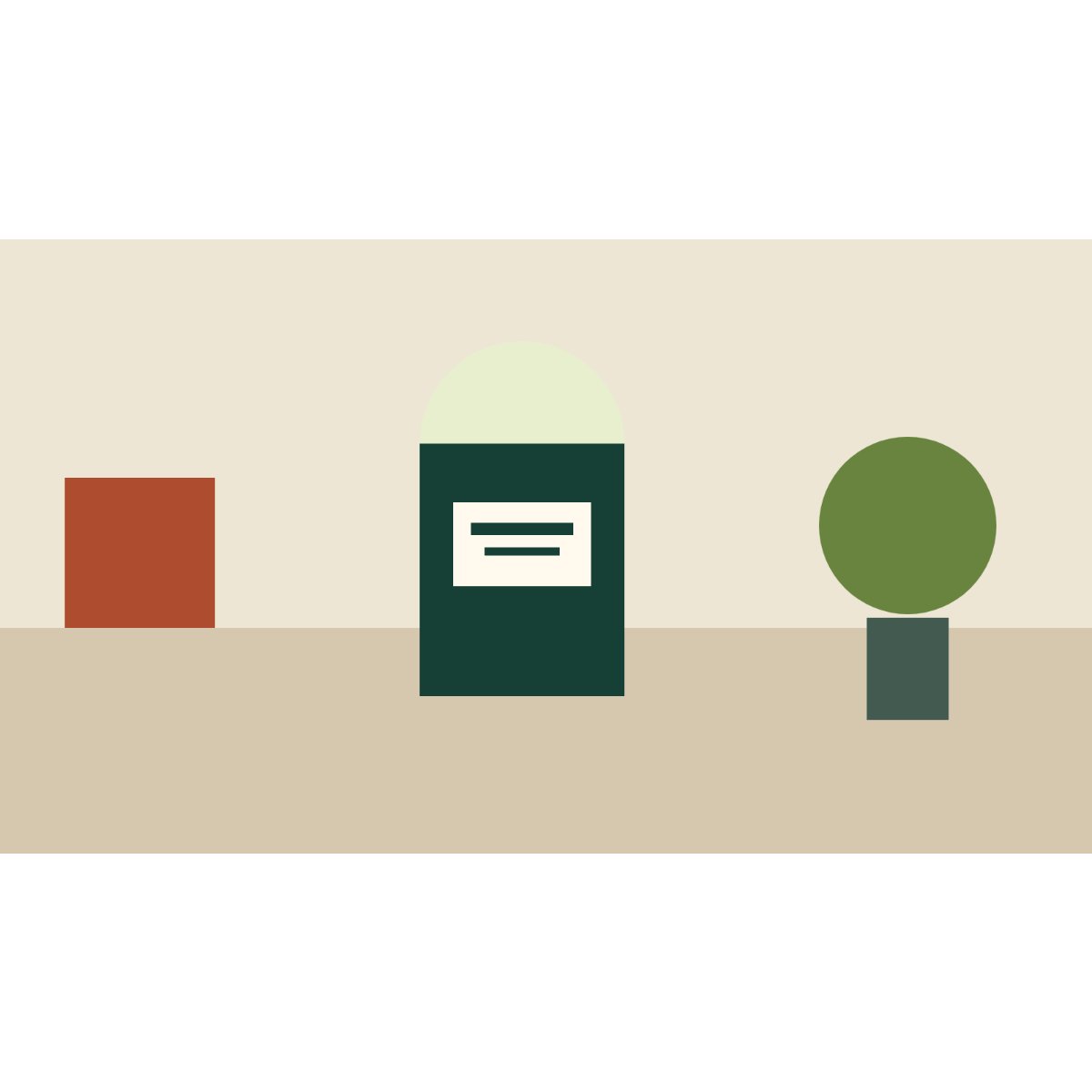
| File / method | Pixels | Bytes | Encoder setting |
|---|---|---|---|
| Original source | 1600 × 900 | 41,937 | Lossless PNG |
| Center Cover | 1200 × 1200 | 45,278 | Lossless PNG |
| White Contain | 1200 × 1200 | 42,767 | Lossless PNG |
| Proportional Resize | 800 × 450 | 14,257 | Lossless PNG |
| White Contain JPEG | 1200 × 1200 | 21,938 | 85% |
Conditions: Chrome 147.0.7727.137, engine v0.1.1, October 10, 2026; center focal position, white background, transparency off, no file-size target. The source was created with original Canvas drawing commands. Encoded bytes vary by browser. The JPEG setting is an encoder input, not a visual quality score.
Desktop and mobile viewport tests use synthetic still images to check composition, file formats, orientation, failure handling, limits and local downloads. A mobile viewport is an emulation; Safari, Firefox and physical mobile devices have not been tested. No customer outcomes or marketplace acceptance are claimed.
What the preview tells you
Previews are smaller display copies. They help check composition, background and broad quality, but do not replace inspecting the downloaded image at full size. Output cards show the actual dimensions, format, byte size, chosen quality and target result. No subjective quality score, traffic claim or marketplace acceptance is invented.
Open Image Studio